How to apply with Taqdim
Taqdim prepares your application, and the Chrome extension fills in the employer's form. You review every field and click Submit yourself. Taqdim never submits anything for you.
Taqdim is in invite-only beta, so you need an account to follow these steps. Request an invite · Sign in
Watch the whole flow
Under three minutes, with captions: all eight steps, from your profile to the moment you click Submit yourself.
Complete your profile
Sign in at app.taqdim.app and fill in your profile: your experience, education and skills, and the answers employers often ask for, such as notice period and expected salary. To start faster, import your existing CV. Taqdim writes from your profile, so the more complete it is, the better the fill.
Paste the job posting
Open Check a job and paste the posting's link or its full text. Taqdim tells you honestly how well you fit, including when a job isn't worth your time.
Generate your tailored CV and cover letter
On the fit report, click Prepare my application. Taqdim writes a CV and a cover letter for this job from your profile. It is designed not to add anything that isn't there, but AI can still make mistakes, so read them both. You can download either one as a PDF.
Install the extension
Open Taqdim in the Chrome Web Store and click Add to Chrome. Then click the puzzle-piece icon in the toolbar and pin Taqdim.
The extension works in Chrome on a computer. It doesn't run on phones.
Open the application form
Keep app.taqdim.app open and signed in, in another tab: the extension uses that sign-in. Then open the employer's application page, the one with the form fields, not just the job description.
Open the Taqdim side panel
Click the Taqdim icon in the toolbar, and the side panel opens next to the page. Click Capture this form, check the matches, choose the job under Apply as, then click Fill the form. If the form is embedded from another site, such as Greenhouse or Lever, the panel first asks you to allow reading it. If you skipped step 3, the panel prepares your documents first, for the same single charge.
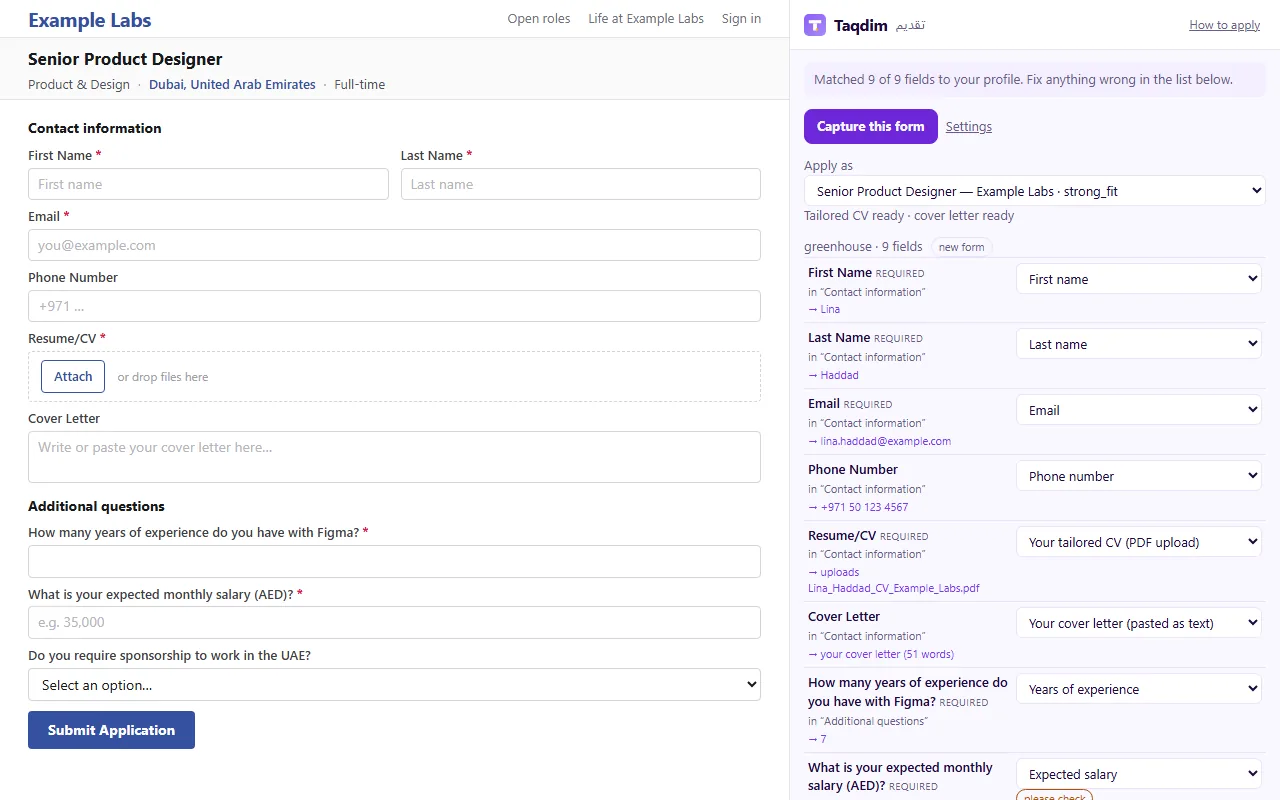
If the form is embedded from another site
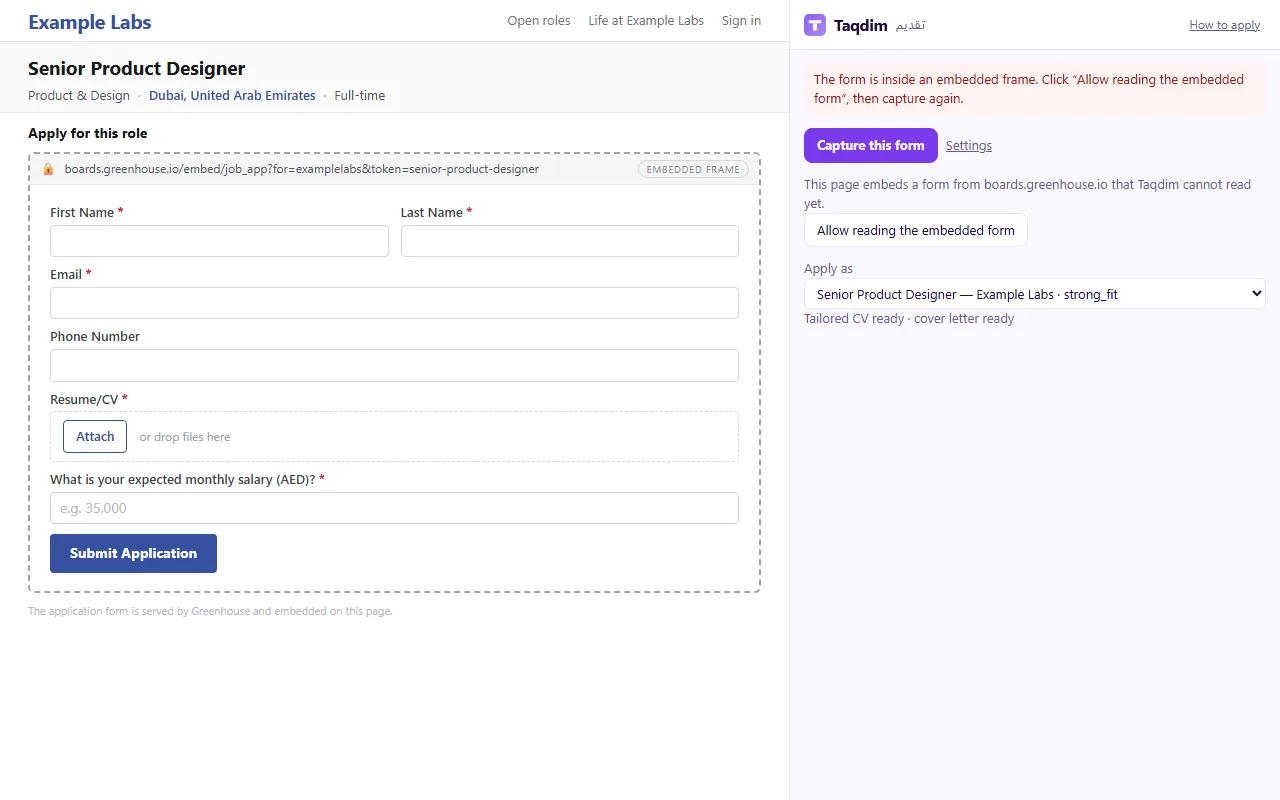
Review every field
Taqdim outlines the fields it filled. Questions only you can answer are highlighted in amber, and fields it left for you are marked in grey. Check each one, fix anything that's wrong, and answer what's left. Your tailored CV is attached for you; make sure it's the right file.
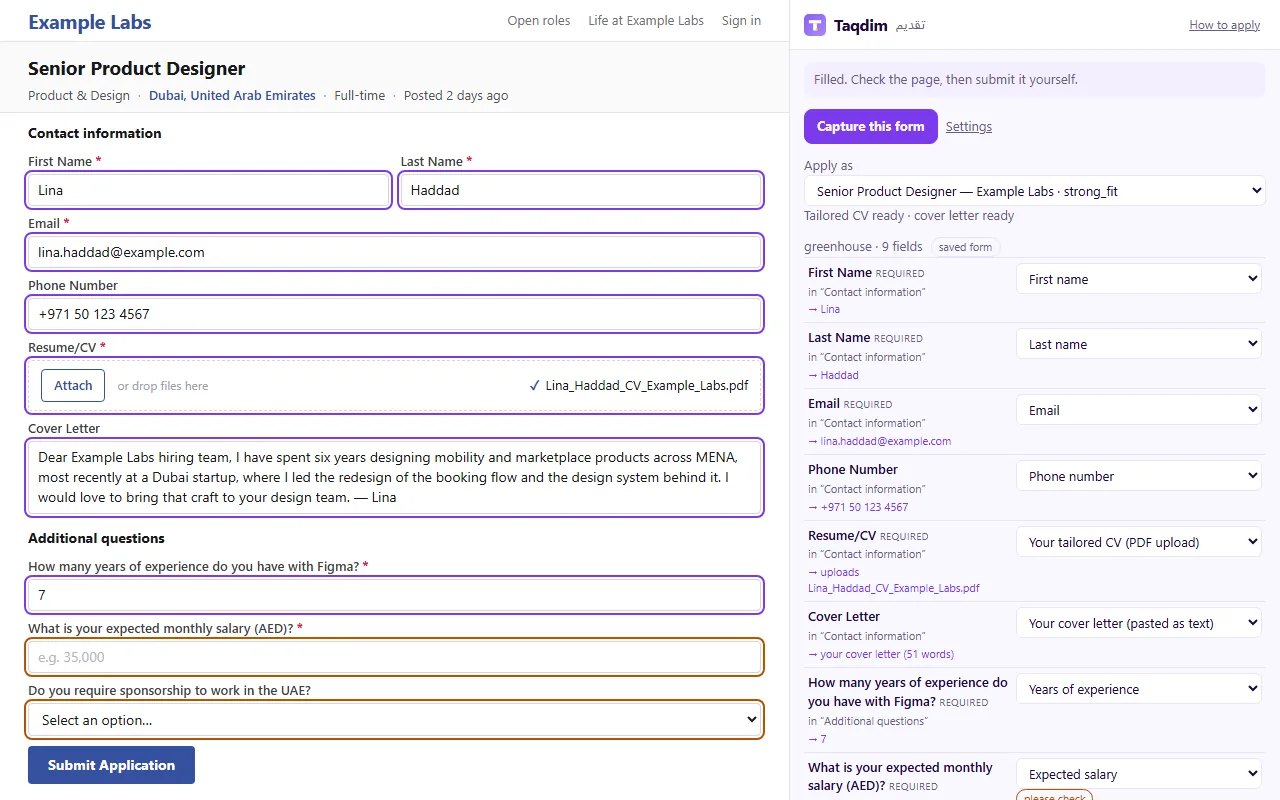
You click Submit
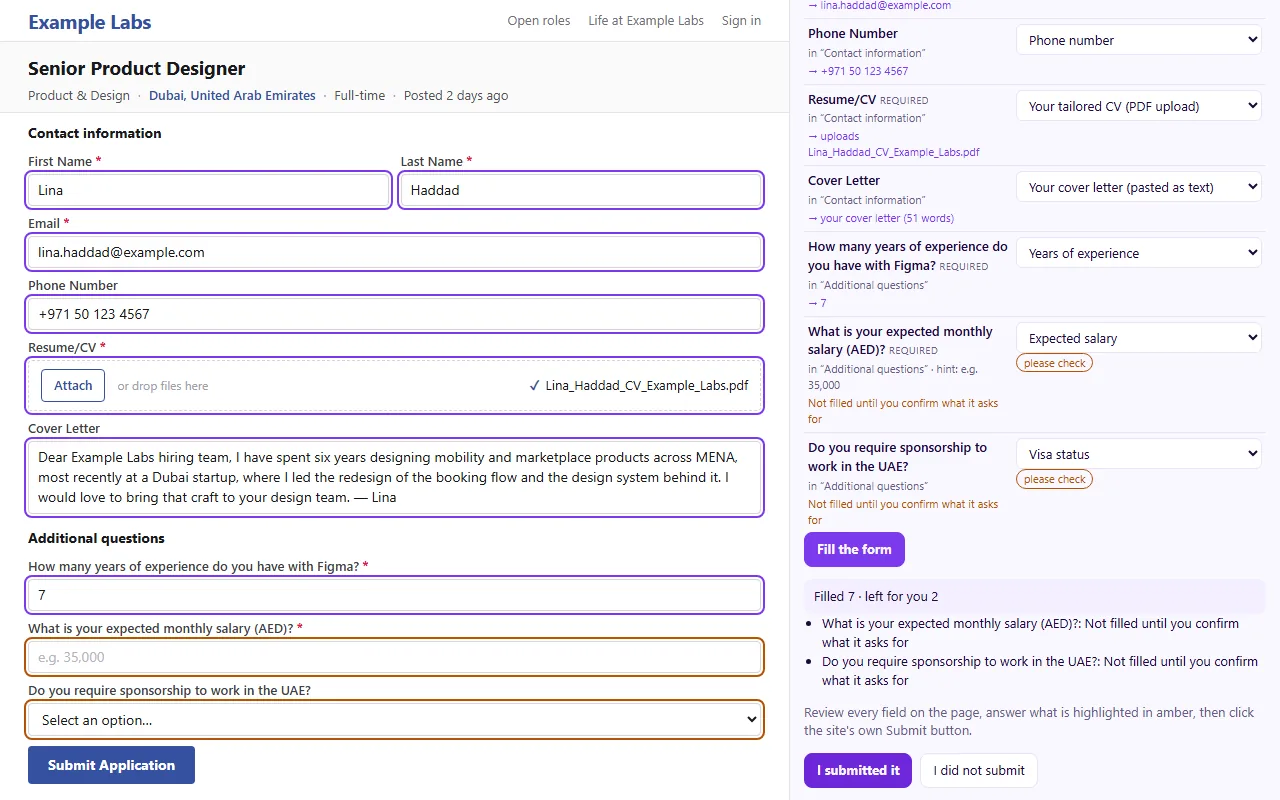
When everything is right, click the employer's own Submit button. Taqdim never submits for you. Then click I submitted it in the panel, so your tracker shows the application as sent.
What the extension never does
- It never submits a form, clicks Apply or solves a CAPTCHA.
- It does nothing on a page until you click its icon.
- It never fills in self-identification questions (gender, ethnicity, disability).